
QR check-in: your team, your guests and check-in on the phone
An exhibition opening, an illustration festival, an independent publishing fair: at the door, everyone has a role. Some people bought a ticket, some work at the event, some will speak on stage, some set up a booth and some cover it all for the press. On Vibeland, everyone gets in with a QR code, and the door phone shows right away who is who.
1. Invite the people who will check guests in
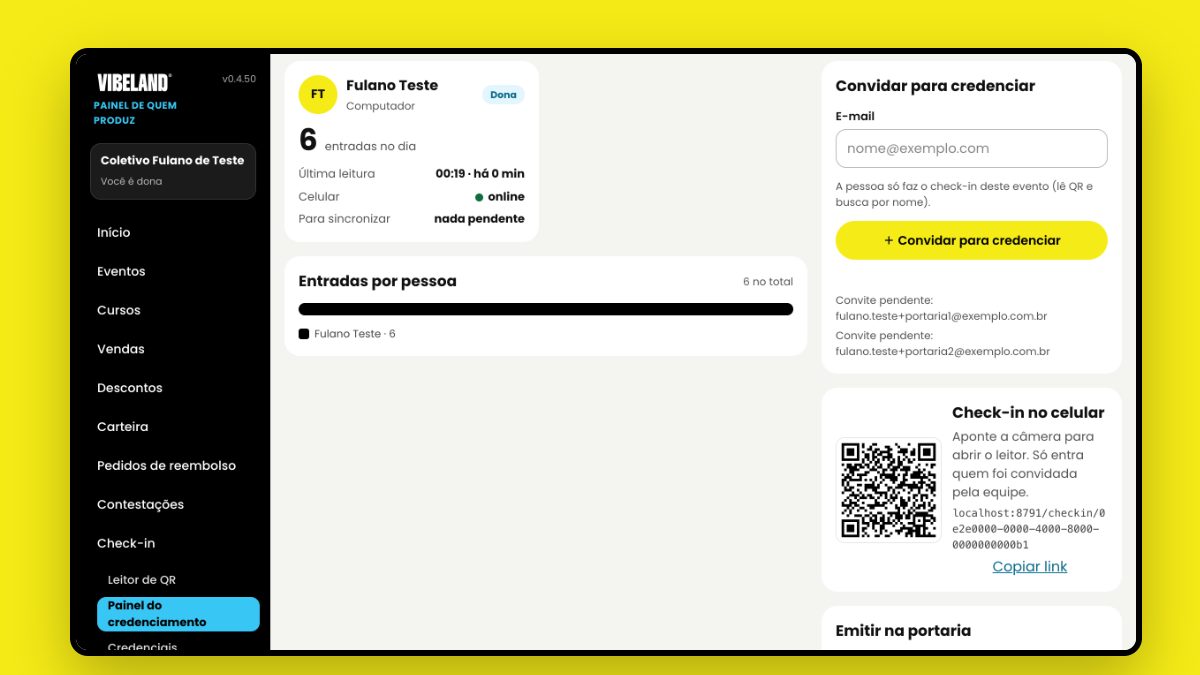
In your dashboard, open Check-in, pick the event and go to the Check-in dashboard. On the Team tab, type the person's e-mail under Invite someone to check people in and tap the button. They get the invitation by e-mail and can only do check-in for this event: read QR codes and look people up by name. Sales, money and settings stay with you.
2. Your team gets in through the QR
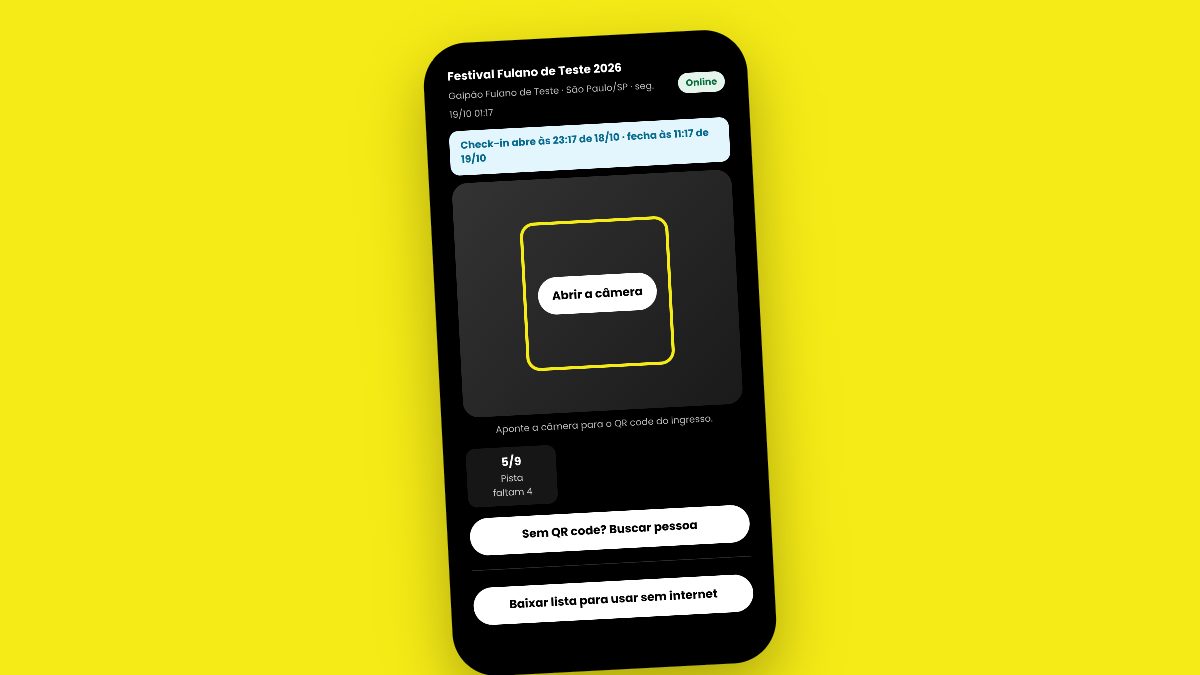
The Check-in on the phone QR code is on the same tab. On the day, the team member points the phone camera at that QR (on the computer screen or printed), signs in with the invited e-mail and the reader opens. There is no app to install: it all runs in the phone's browser. No Vibeland account yet? They can create one on the spot, with the same e-mail as the invitation.
3. Add credentials by category
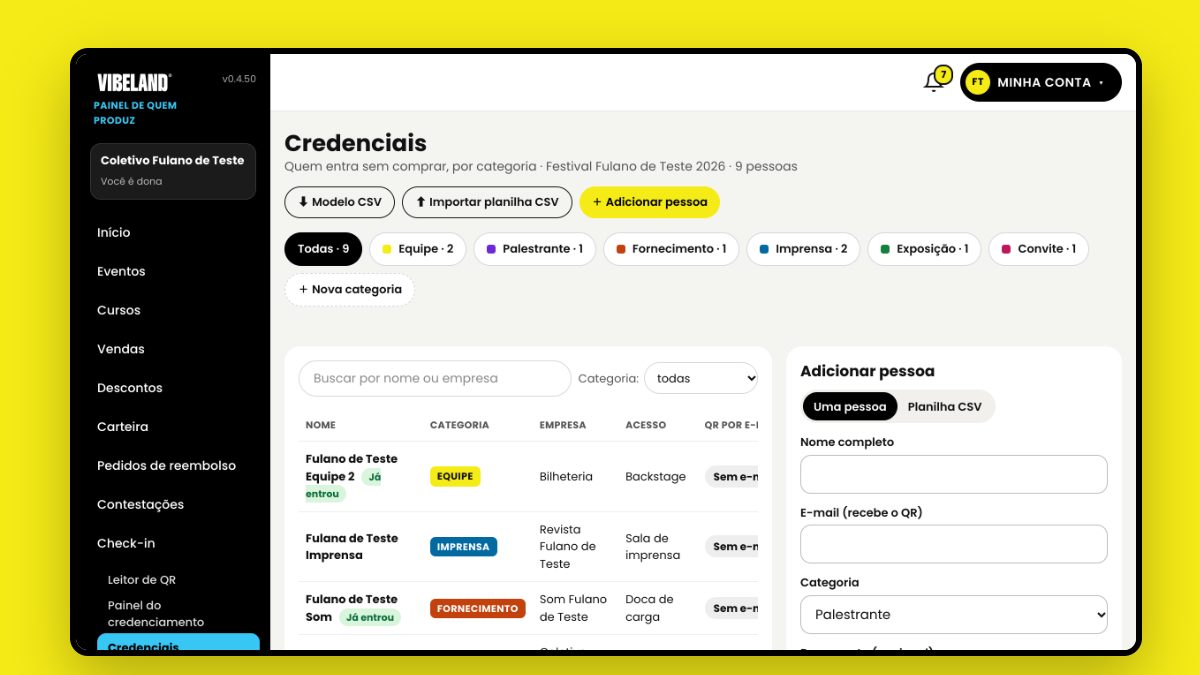
People who get in without buying a ticket get a credential. In Credentials, add one person at a time or import a CSV sheet with name, e-mail, ID document, category, company and access area. The categories are General public, Staff, Speaker, Supplier, Press, Exhibitor and Guest, and you can create your own, in any color. Each person gets their own QR code by e-mail.
4. At the door, just read the QR
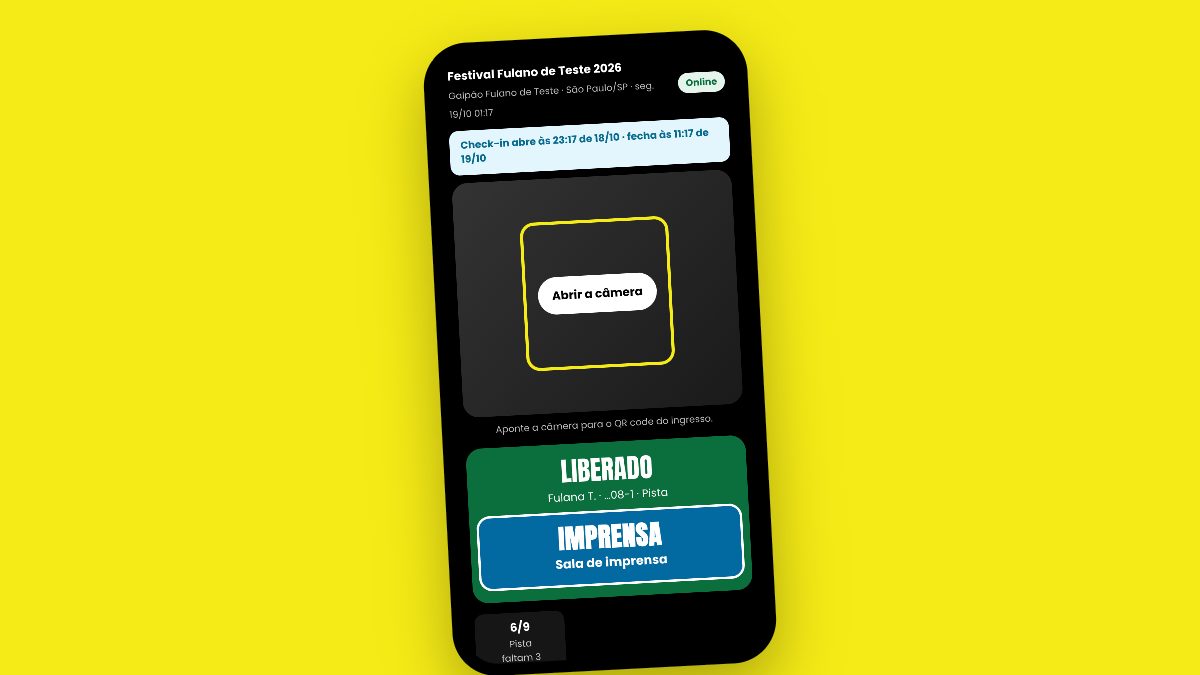
The door phone reads the QR code of the ticket or credential and shows right away whether the person can come in. A credential shows up in a large bar, in the category color, with the access area: the team knows at a glance if it is someone from the press, an exhibiting artist or the sound supplier. Someone arrived without the QR? Tap No QR code? Find the person and search by name, e-mail, CPF or passport.
5. No internet? It keeps working
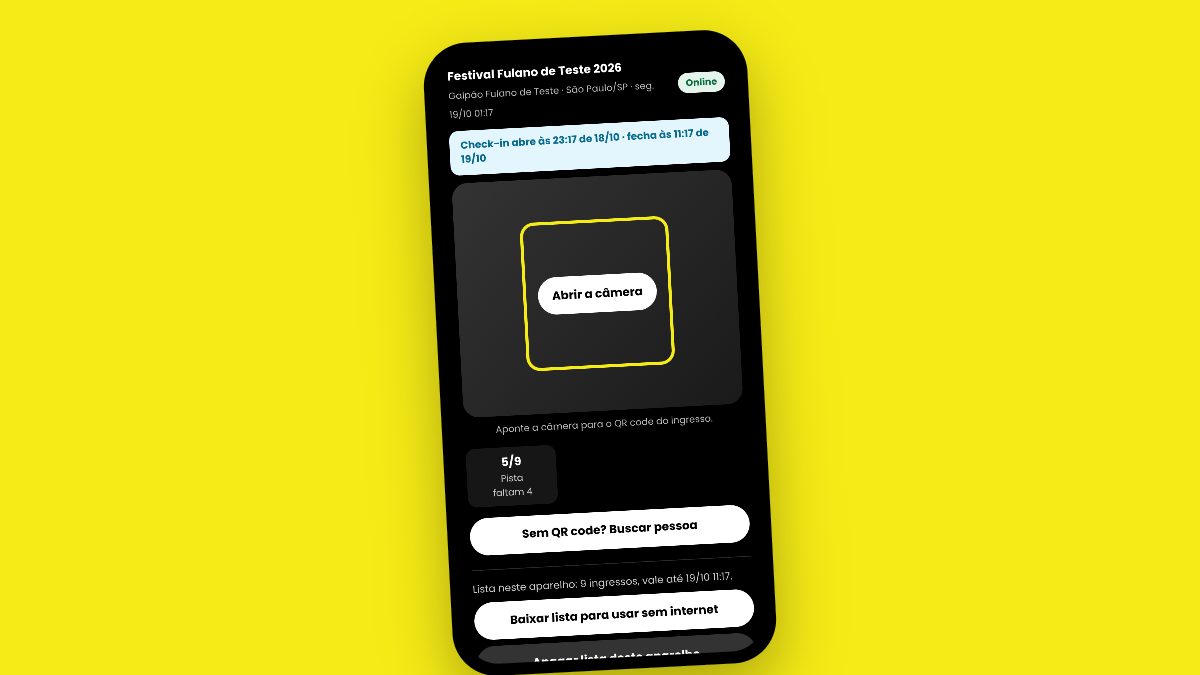
Before opening the doors, tap Download the list to use offline on each phone. If the signal drops, the phone keeps reading QR codes and stores the entries. When the internet comes back, it sends everything to the dashboard on its own. If the same QR is read on two phones while offline, the first read counts and the dashboard warns you on the Alerts tab.
6. Opens 2 hours before, closes 2 hours after
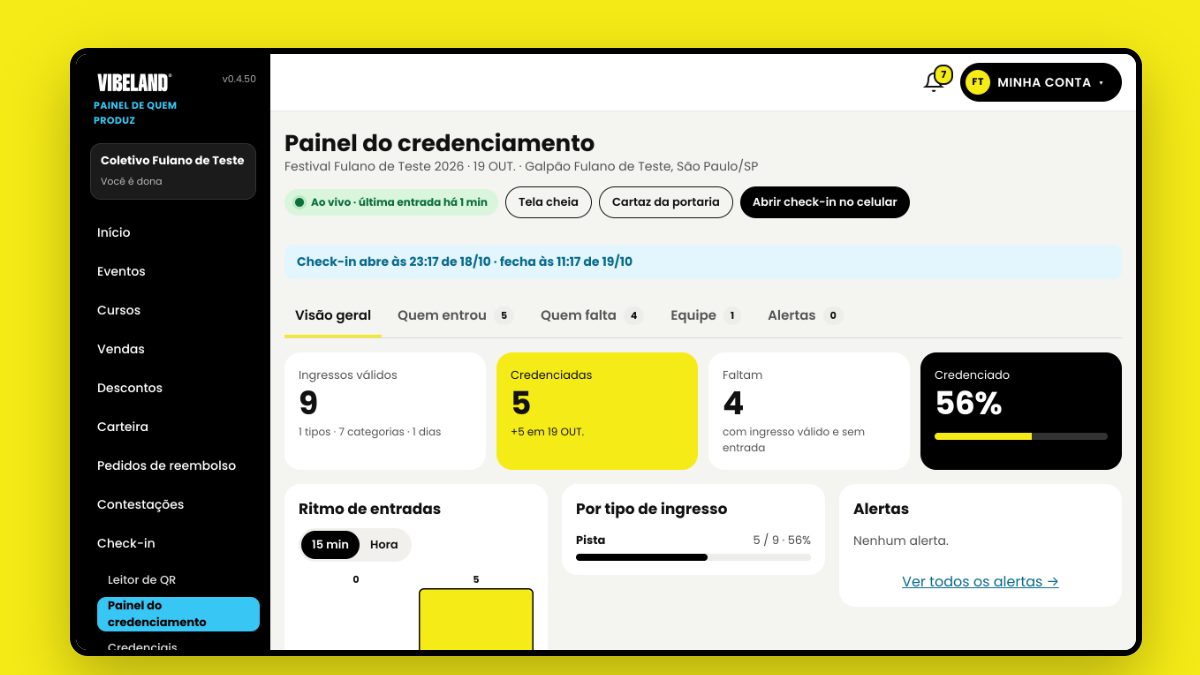
Check-in opens 2 hours before the start of the event and closes 2 hours after the end, in the event's time zone. The hours show in a bar at the top of the door phone and of the dashboard. Outside those hours, the read is refused with a clear message and no entry is recorded. On the dashboard, the Overview shows live how many people came in, how many are missing, the pace at the door and entries by category.
Tip for the day
Invite your team and add the credentials a few days before. On the day, download the list on every door phone before opening. It takes a few seconds and keeps everyone calm, with or without signal.